How to Export Your Google Maps Saved Places (and Use Them for a Trip)
Export your saved places from Google Maps with Google Takeout, then import them into a trip planner so they sit on your map next to your route.
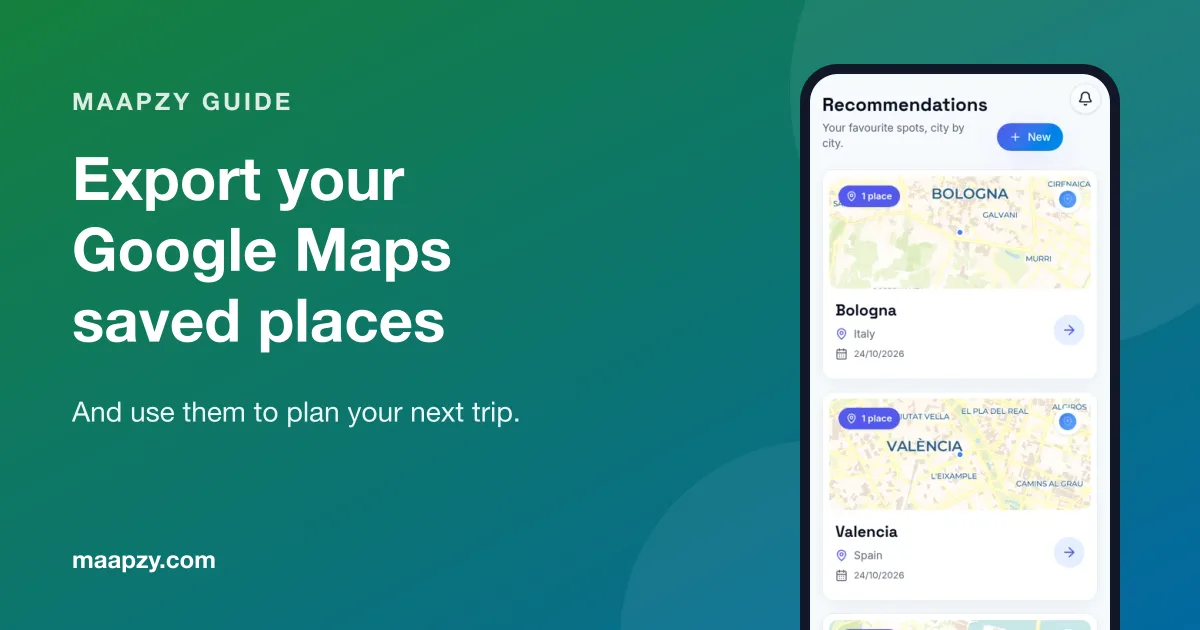
Most of us have hundreds of starred places in Google Maps: restaurants a friend mentioned, a viewpoint from a reel, a hotel we never booked. They're useful, but they're stuck in one app and hard to plan with.
Here's how to get them out and turn them into part of a real trip.
It takes about ten minutes, most of which is waiting for Google's email. You'll need a computer or phone browser and the Google account you save places with.
Step 1: Open Google Takeout
Go to Google Takeout and sign in with the account you use for Google Maps. Click Deselect all, so you only export what you need.
Step 2: Choose your Maps data
Scroll down and tick:
- Maps (your places): your starred places and labelled places
- Saved: your saved lists, such as Want to go and your own lists
Then click Next step, choose to export once as a ZIP file and create the export. Google emails you when it's ready, usually within minutes. Download the file to your computer or phone and keep it somewhere easy to find.
Step 3: Know what's in the file
The ZIP contains GeoJSON files (with coordinates) for starred places and CSV files for saved lists. One catch: Google's saved-list CSV files often leave out the location. That means some places can't be pinned on a map without adding coordinates.
Step 4: Import into your trip planner
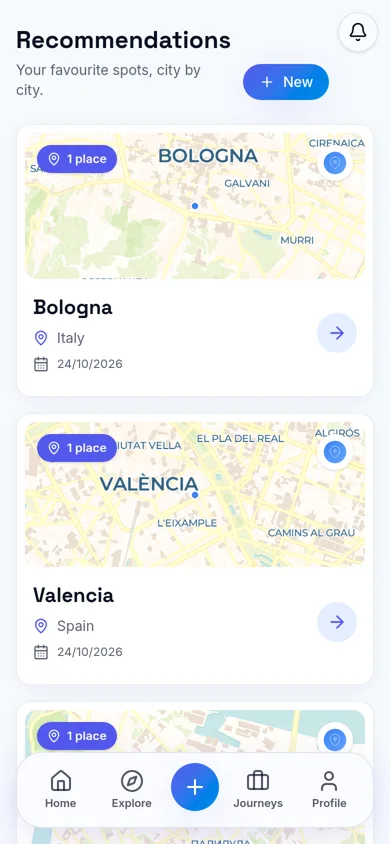
In Maapzy, open Recommendations and choose Import Google Maps places, then pick the ZIP, CSV or GeoJSON file. Places with a location go straight onto your globe. For places without one, you can add a latitude and longitude yourself, or import only the located places. Maapzy never guesses a pin.
Imported places stay private to your account. Nobody sees them unless you choose to share a list later.
If you have hundreds of saves, start with one city you're actually planning to visit. Import, tidy up that city's list, and come back to the rest later. A clean list of twenty places is far more useful than a messy one of five hundred.
Step 5: Group places by city and trip
Now the useful part. Places are grouped by city, so when you plan a trip to Lisbon, all your Lisbon saves are already there. Add the ones you want to your route, and share a city list with friends who are going. Our guide on how to save and share places for a trip explains how.
Troubleshooting
My export is empty
Check that you're signed in to the same Google account you use on your phone, and that you selected Maps (your places) and Saved before exporting.
Some places have no pin
That's the missing-location issue in saved-list CSV files. Look the place up in Google Maps, copy its coordinates and add them during import, or skip those places for now.
The import shows duplicates
A place can be both starred and in a saved list. Remove the extra copy after import. It's quicker to do this city by city than all at once, and you'll spot closed places while you're there.
Why move saved places out of Google Maps?
- Plan with them. See your saves next to your route, not in a separate app.
- Group them by trip. All your Lisbon places in one list when you're planning Lisbon.
- Share them properly. Send friends a city list with your notes, not a pile of links.
- Keep a backup. Takeout gives you a copy of years of saves, whatever happens to your account.
Tips for cleaning up years of saved places
- Delete places that have closed or that you no longer care about
- Rename vague saves like 'Restaurant' to what they actually are
- Add one line about why you saved it, while you still remember
- Group the best ones into a list per city you'd like to visit
Step 6: Plan the route around them
Open the planner and build your route with your saved places in mind. If three favourite restaurants are in one neighbourhood, stay there. Read how to find local tips when traveling to fill the gaps.
Google Maps export checklist
- Open Google Takeout and click Deselect all
- Tick Maps (your places) and Saved
- Export once as a ZIP file
- Download the ZIP when Google emails you
- Import it under Recommendations in Maapzy
- Add coordinates for any place without a location
- Use the city lists when planning your route
Frequently asked questions
Can I export my Google Maps saved places?
Yes. Google Takeout lets you export starred places and saved lists as a ZIP file containing GeoJSON and CSV files.
Why are some places missing a location after import?
Google's saved-list CSV files often don't include coordinates. In Maapzy you can add a latitude and longitude for those places, or import only the ones that have a location.
How long does a Google Takeout export take?
For Maps data only, usually a few minutes. Google emails you a download link when it's ready. Bigger exports with photos or mail can take hours or days, so select only Maps (your places) and Saved.
Does exporting delete my places from Google Maps?
No. Takeout makes a copy. Your saved places stay in Google Maps as they were.
Sources
Start your next trip on a map.
Pin a few cities and see what a realistic route looks like — in five minutes, for free.
Open the plannerKeep reading
- How to Plan a Trip on a 3D Globe (and Why It Helps)Planning on a spinning globe shows real distances, routes and gaps that a list never will. Here's how to use one to plan your next trip, step by step.
- How to Become a Local Guide in Your CityLove showing friends around your city? Here's how to become a local guide: what to offer, how to set a price and how travelers find and contact you.
- How to Create a Travel Itinerary That Actually WorksBuild a realistic day-by-day travel itinerary with anchor stops, honest travel times and room for the unexpected, so your trip never feels rushed.